
💾 Cloud drive
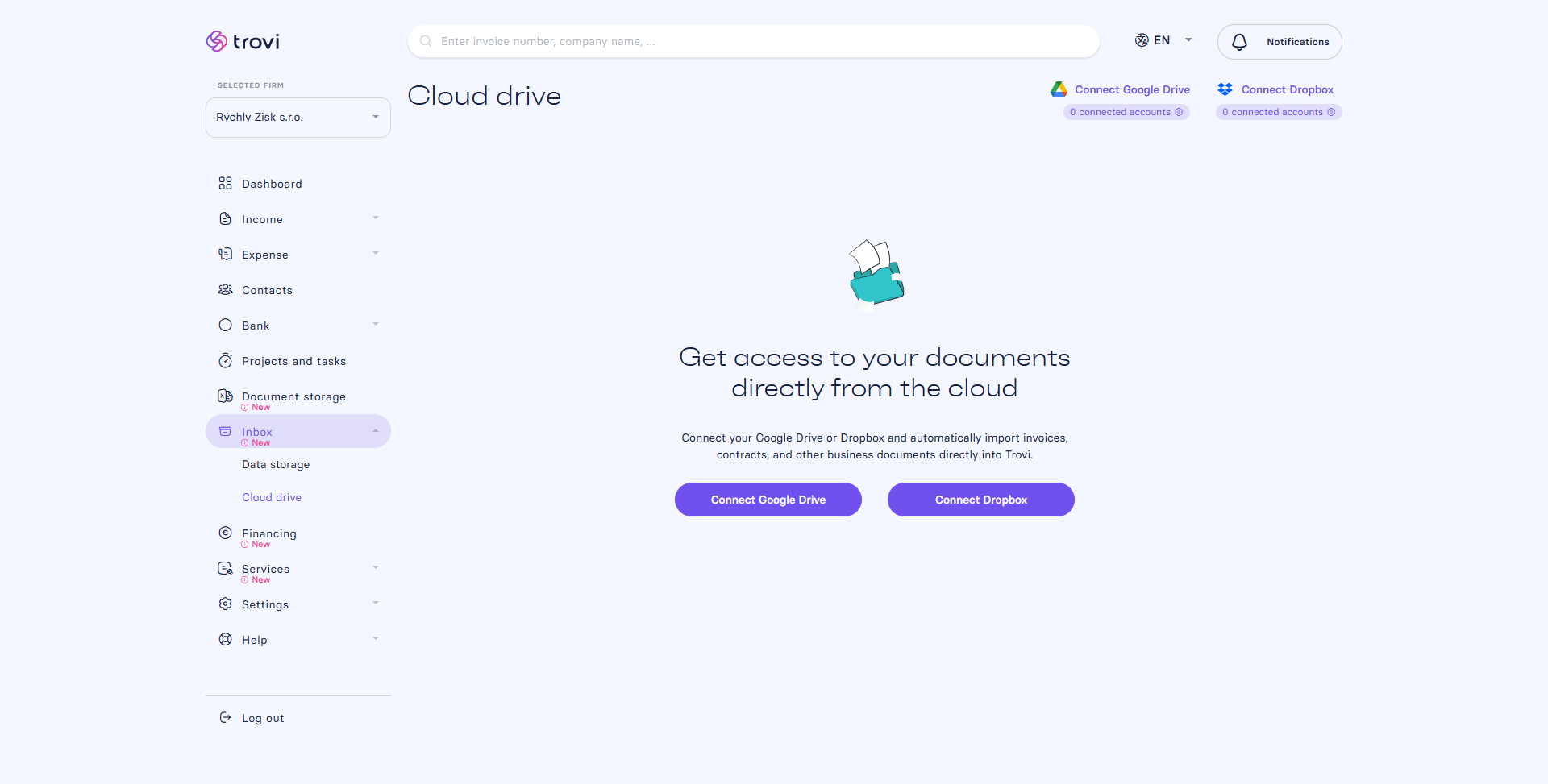
Connect Google Drive or Dropbox directly to Fakturácia and process your documents without forwarding them by e-mail.
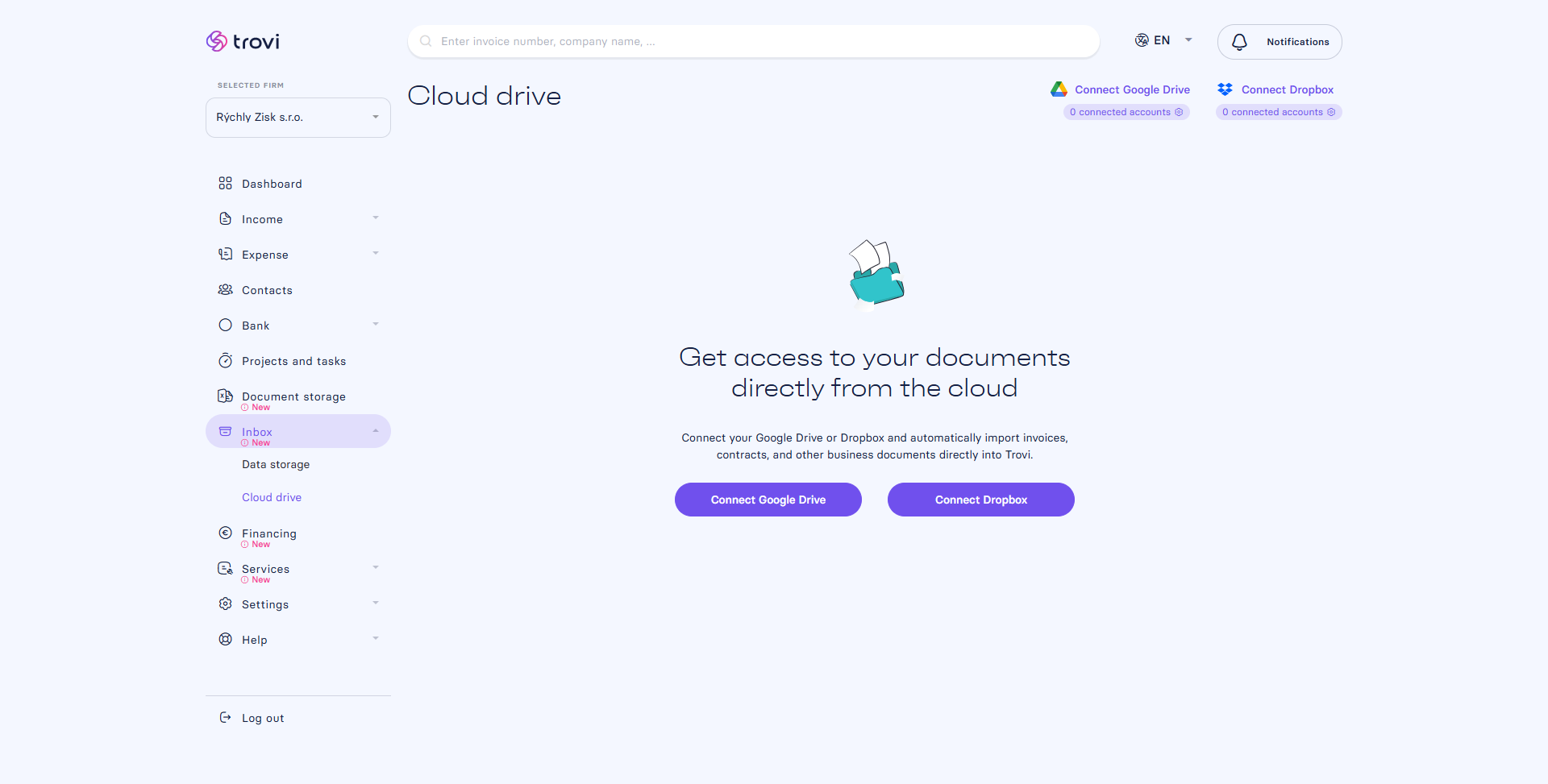
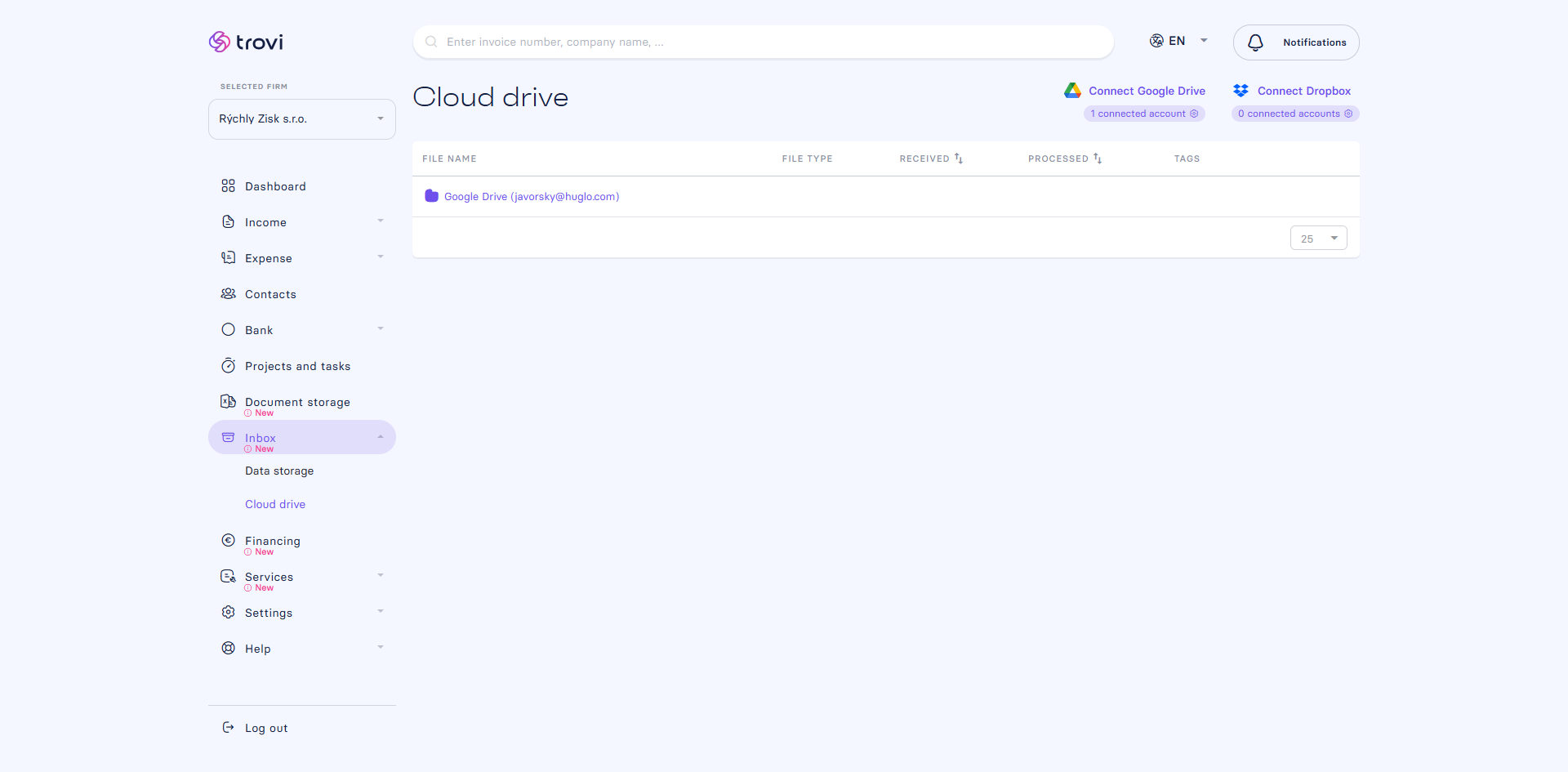
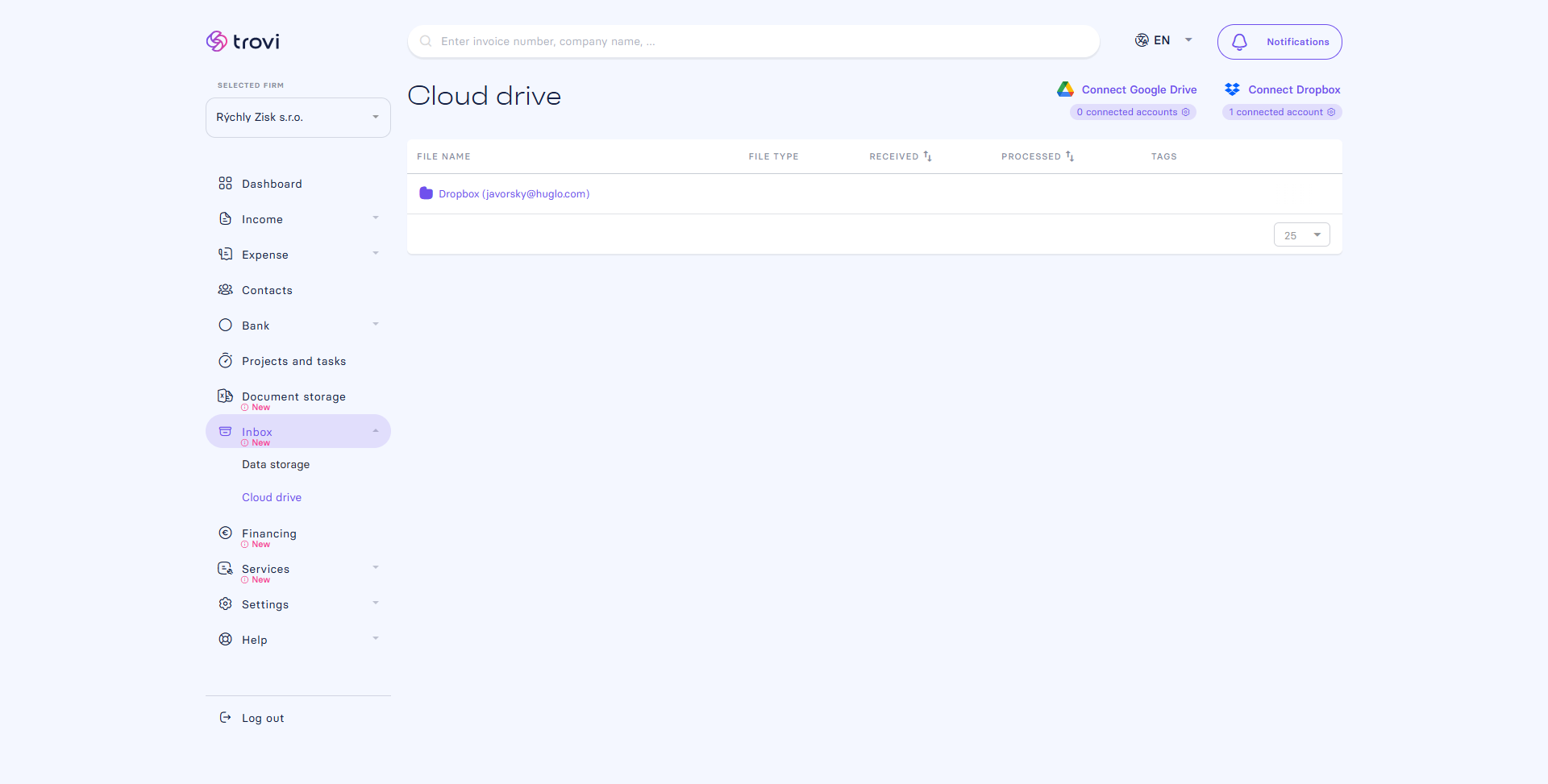
Once connected, your entire cloud storage will appear in Fakturácia – 1:1 with all your folders and files.
How it works:
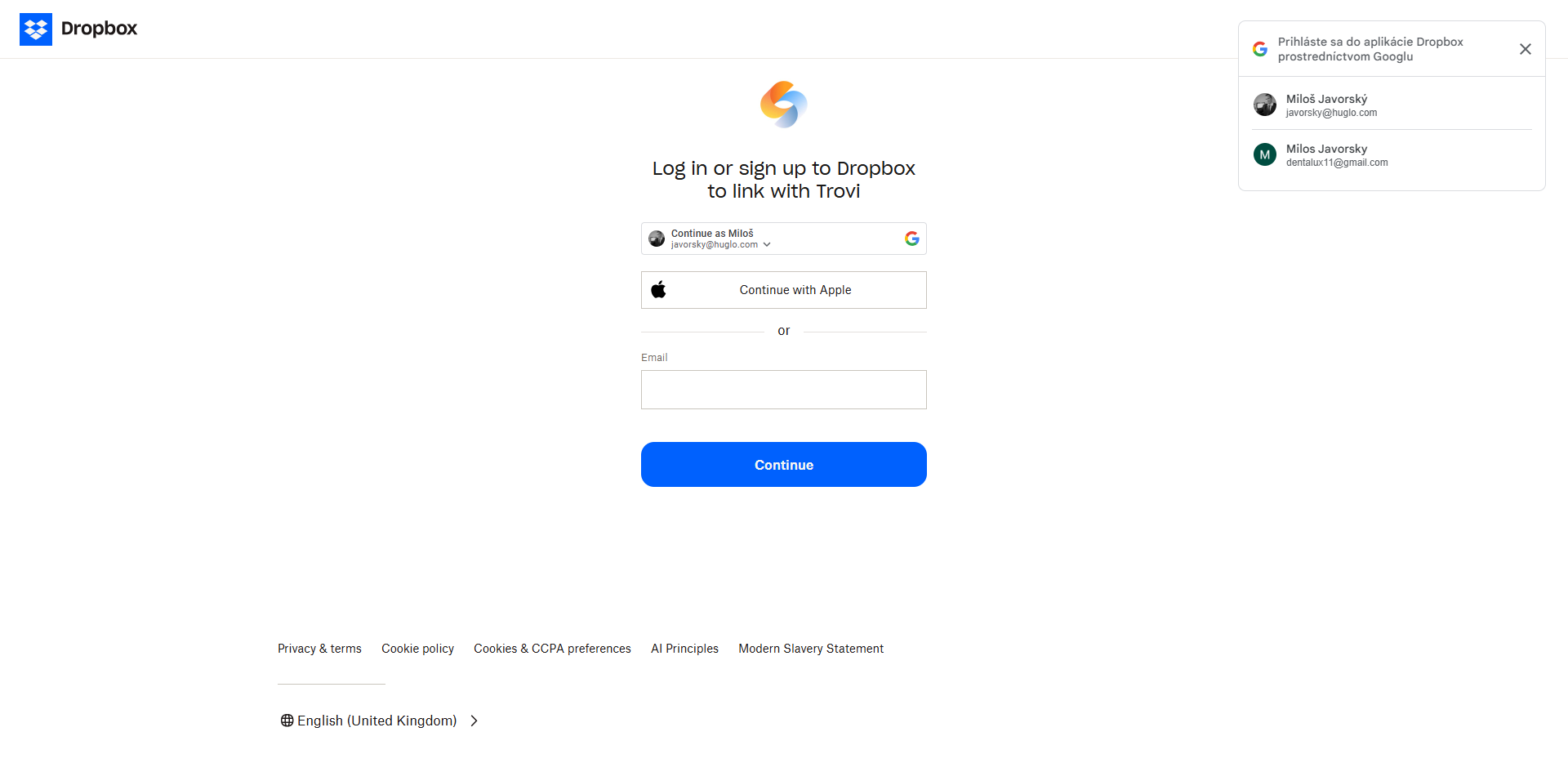
- Connect an account – click Connect Google Drive or Connect Dropbox and sign in to your account.
The login process may take longer – you need to authorize Fakturácia to access your storage.
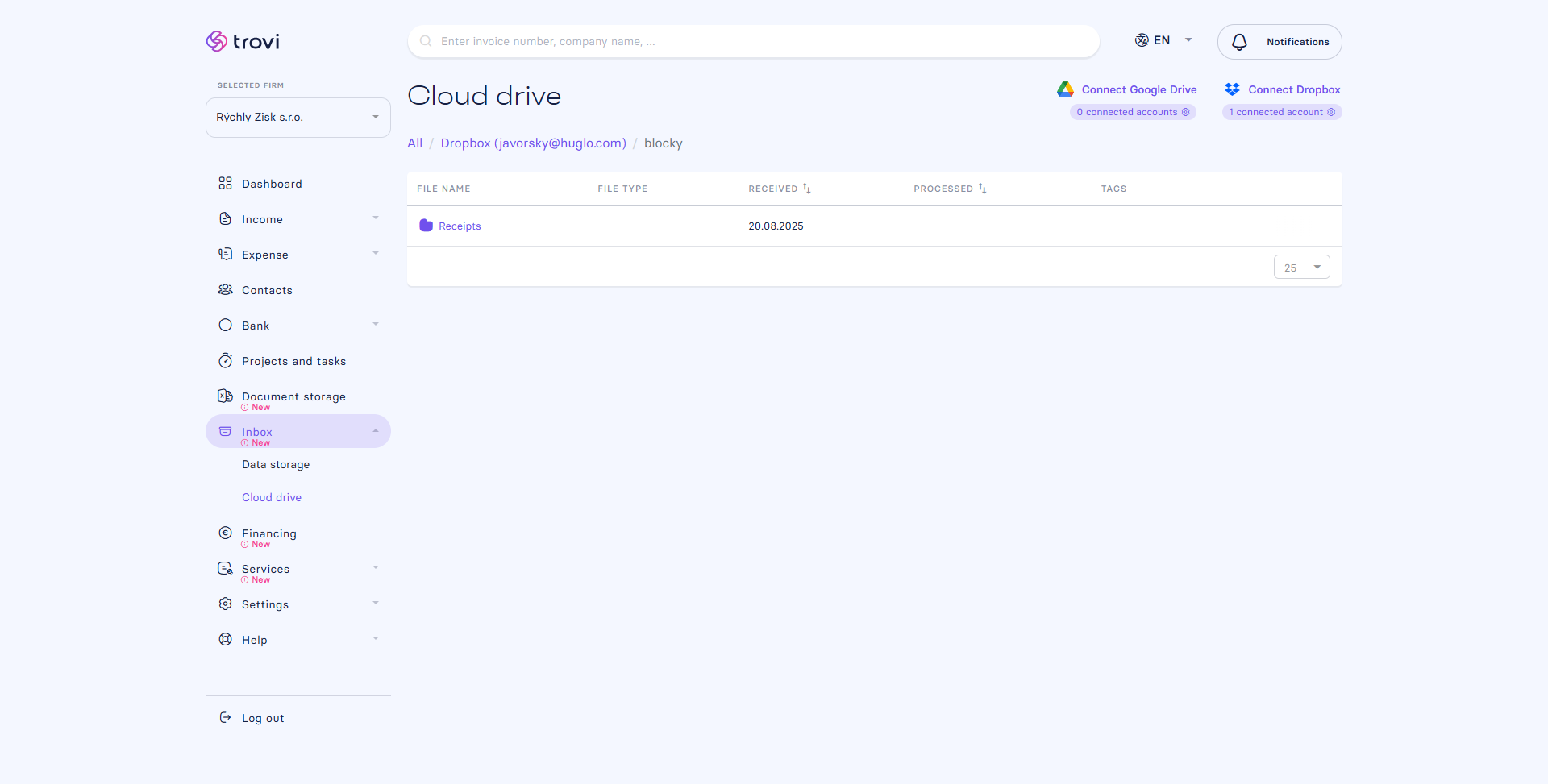
- Load content – after successful connection, your entire cloud disk (Google Drive / Dropbox) will appear in Fakturácia 1:1 – all folders and files exactly as you have them in the cloud.
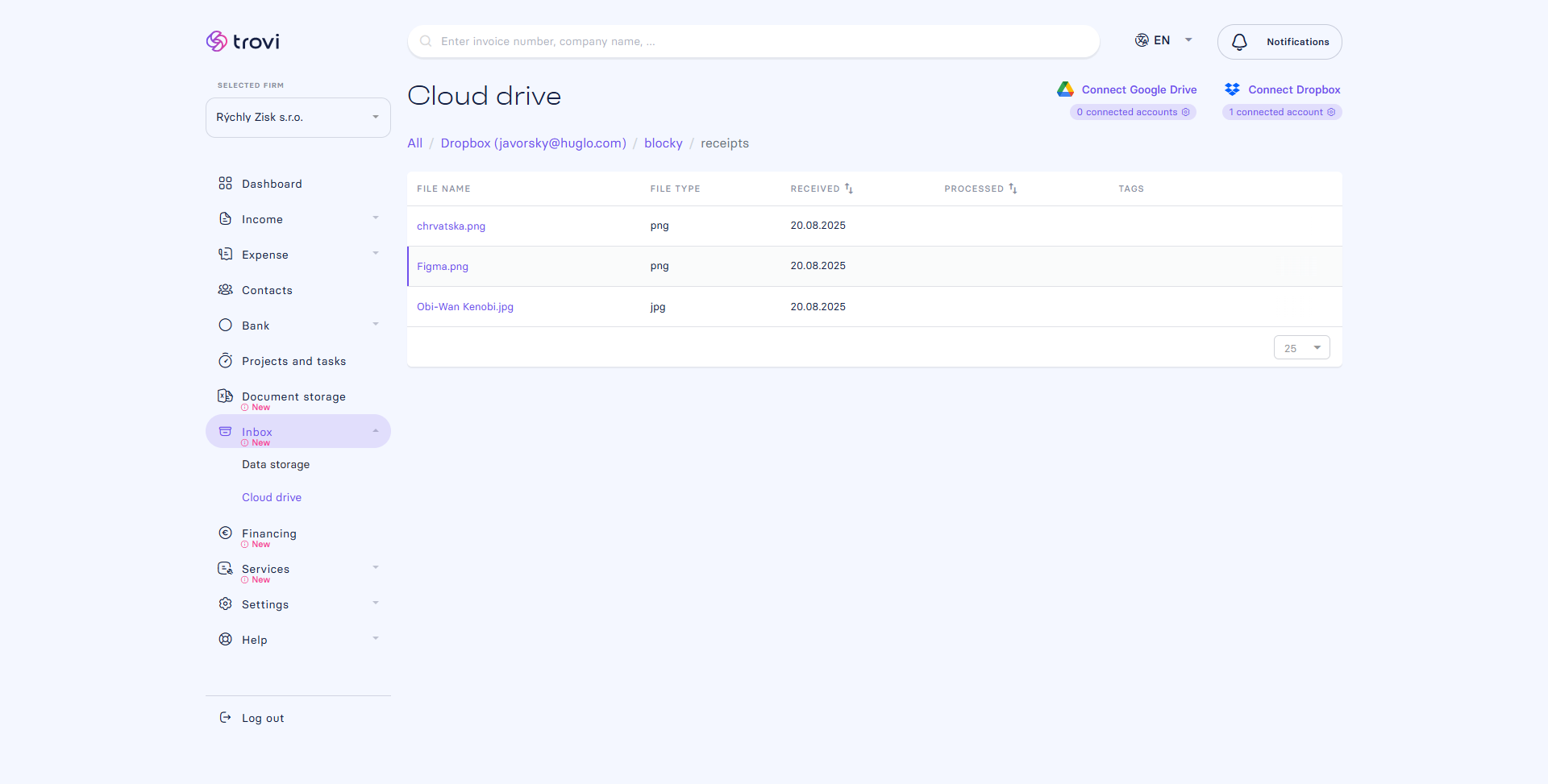
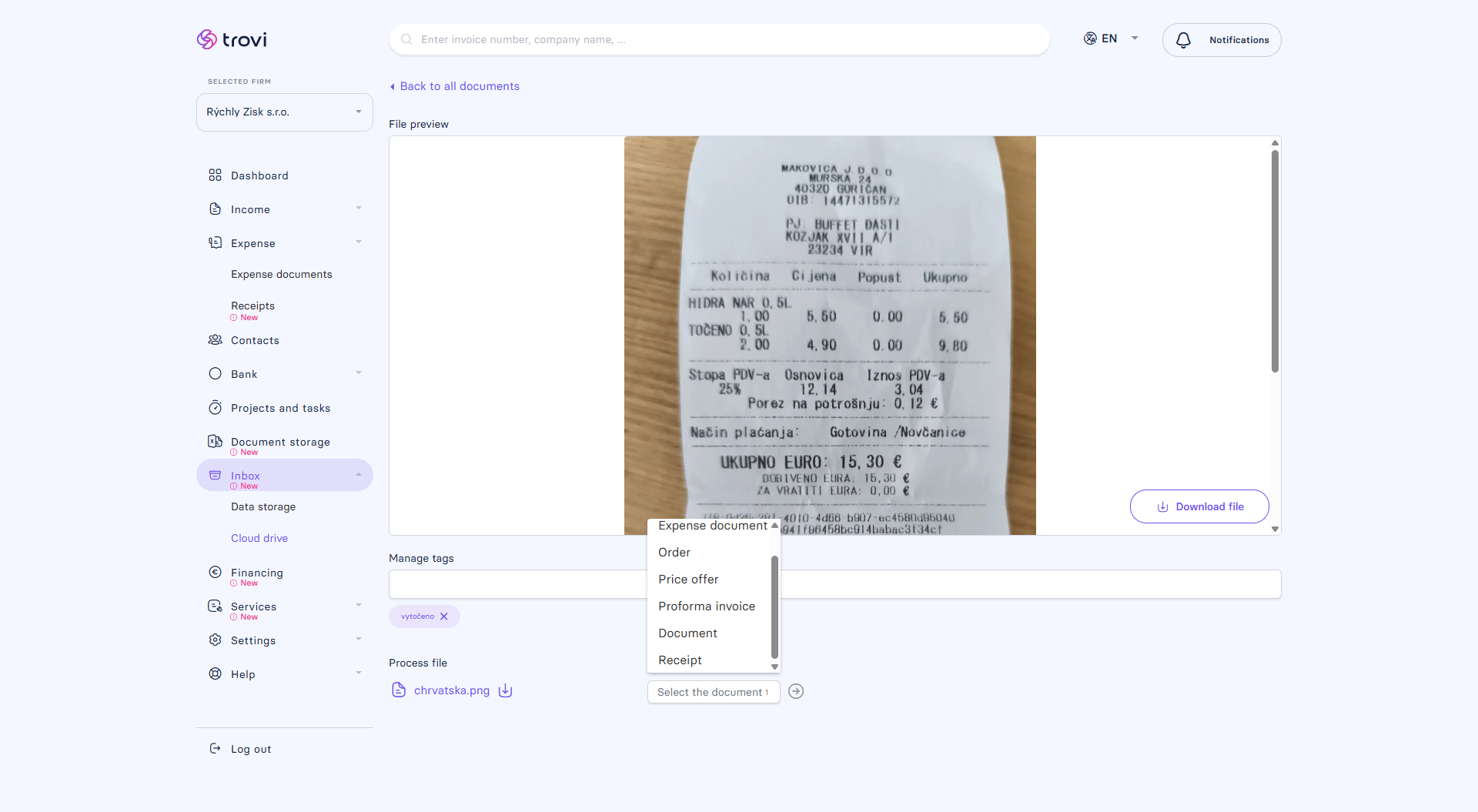
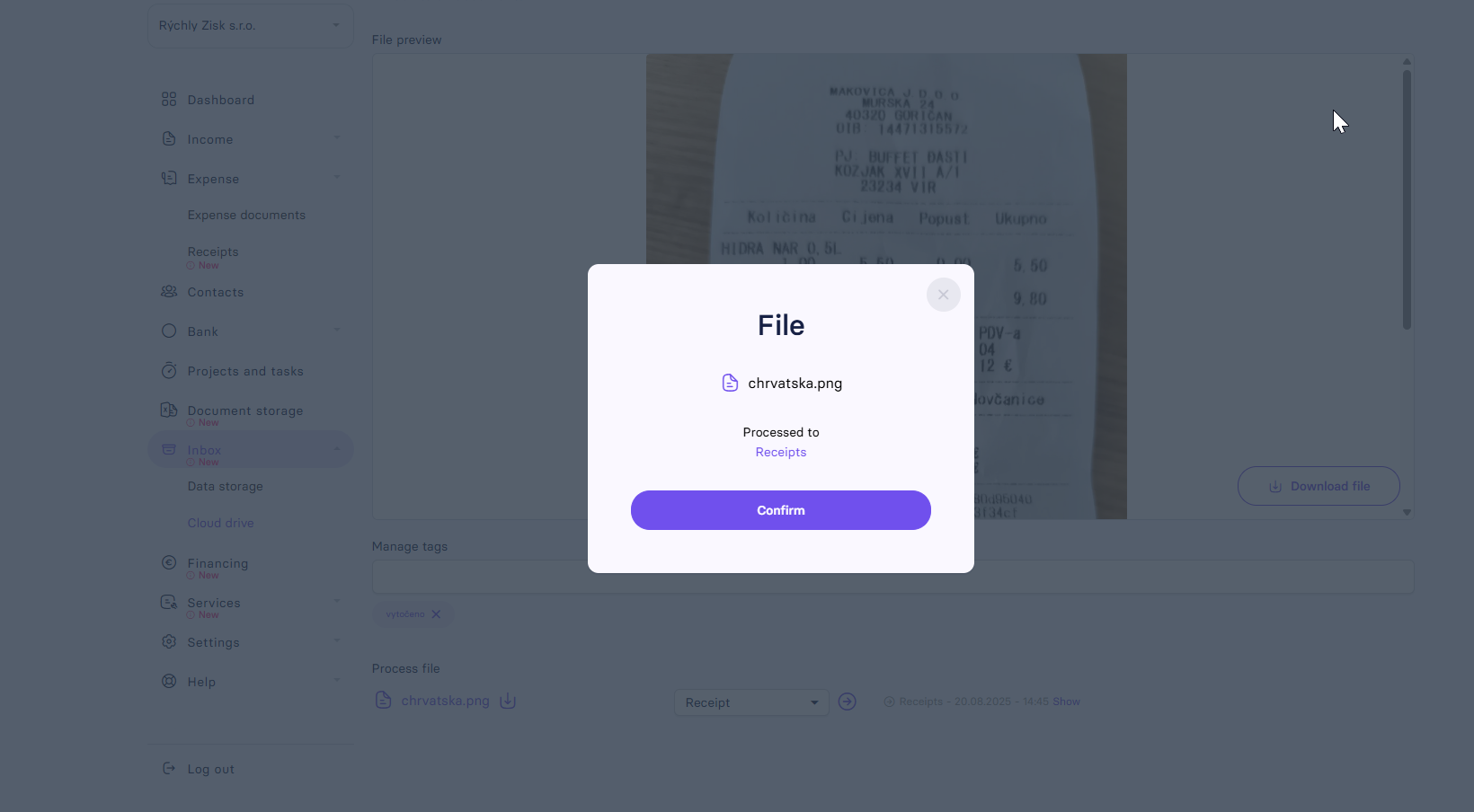
- Work with files – in the Cloud drive section you can browse and process files just like in the Data Inbox:
- open a file,
- add tags (saved instantly),
- choose the document type (e.g. Receipts, Document storage, Expense documents…),
- and move it to the appropriate section.
- Tags – are carried over only when moving files into the Receipts and Document storage sections.
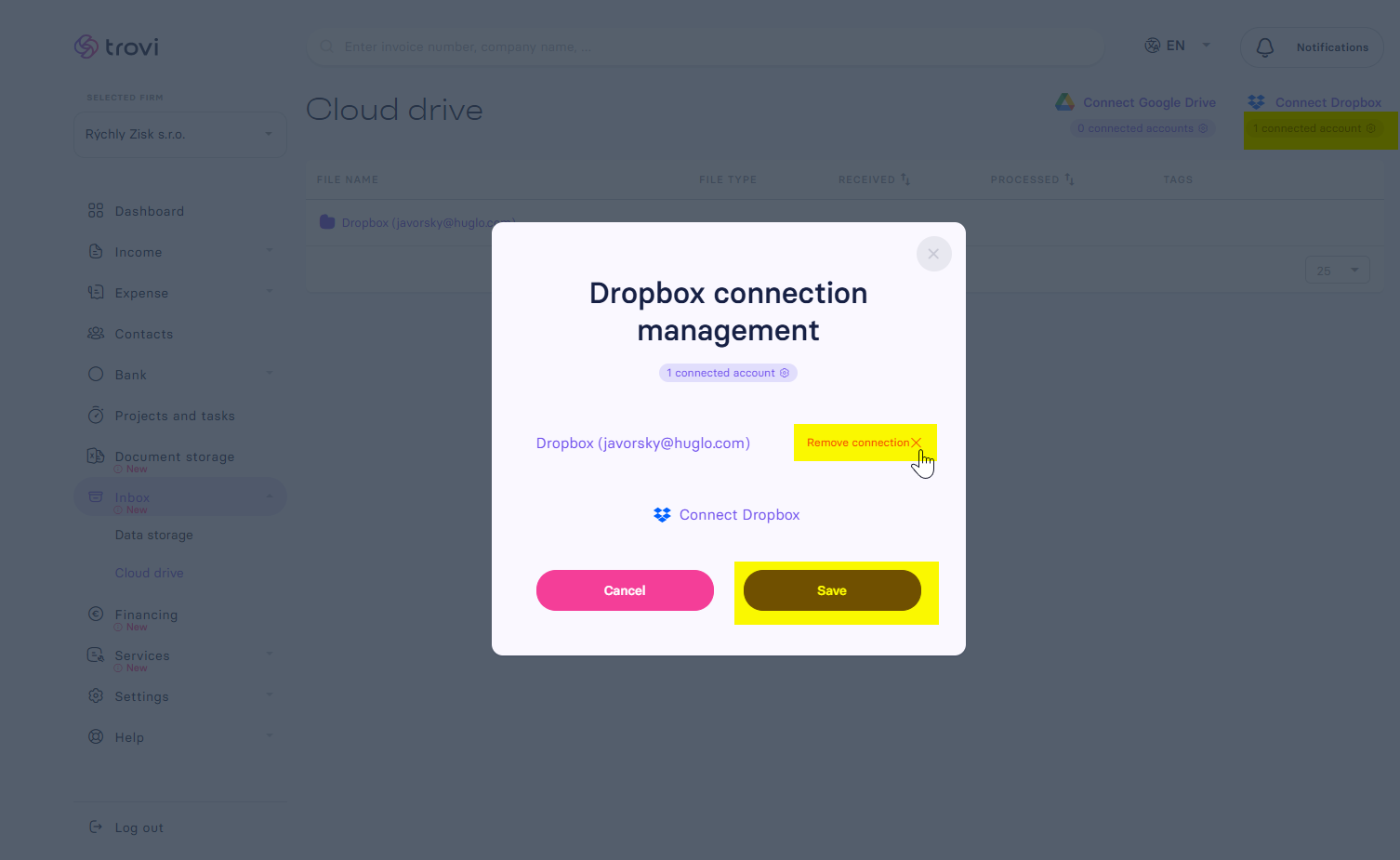
- Disconnect an account – if you want to remove a connection, go to Settings (gear icon in the top right) - Dropbox connection management (or GD), click Remove connection and then Save.
Benefits:
✅ Direct access to your entire Google Drive or Dropbox – no need to forward e-mails
✅ Option to connect multiple accounts (e.g. several Google Drive or Dropbox accounts)
✅ Fast file processing – add tags and move files into sections
✅ Tags work instantly and are preserved when transferred (Receipts, Document storage)
✅ Clear overview of all your files in one interface
Frequently Asked Questions (FAQ):
❓ Can I connect multiple accounts at once?
Yes – you can connect multiple Google Drive and Dropbox accounts simultaneously in Fakturácia.
❓ Will my cloud folder structure be preserved?
Yes – Fakturácia displays your entire cloud storage exactly as it is in Google Drive or Dropbox.
❓ How do tags work?
Tags react instantly – no need to click Save. When moving files to the Receipts or Document storage sections, tags are automatically transferred with the file.
❓ Can I process all files in a folder at once?
No – each file is processed individually. This allows you to assign a specific document type and tags to every file.
❓ What happens if I disconnect a drive?
Files you have already processed into sections in Fakturácia remain stored. You will only lose access to unprocessed files from the disconnected account.
Dropbox + Working with a file:

📝 This article was translated with AI. If you notice any inconsistency, feel free to let us know.