
🧾 What is two-factor authentication?
Two-factor authentication 🛡️ (2FA) adds an extra layer of protection.
✉️ In addition to your email and password, you’ll enter a one-time verification code.
This code is sent via email (or via app / SMS – depending on what you choose).
Even if someone obtains your password, they won’t be able to access your account without this code.
🛠️ Available 2FA methods
In Fakturácia, you can choose from 3 verification options:
📩 SMS – the code is sent to your phone number
📧 Email – the code is sent to your email address
📱 Mobile app – e.g. Google Authenticator or other authentication apps
📲 How to activate two-factor authentication
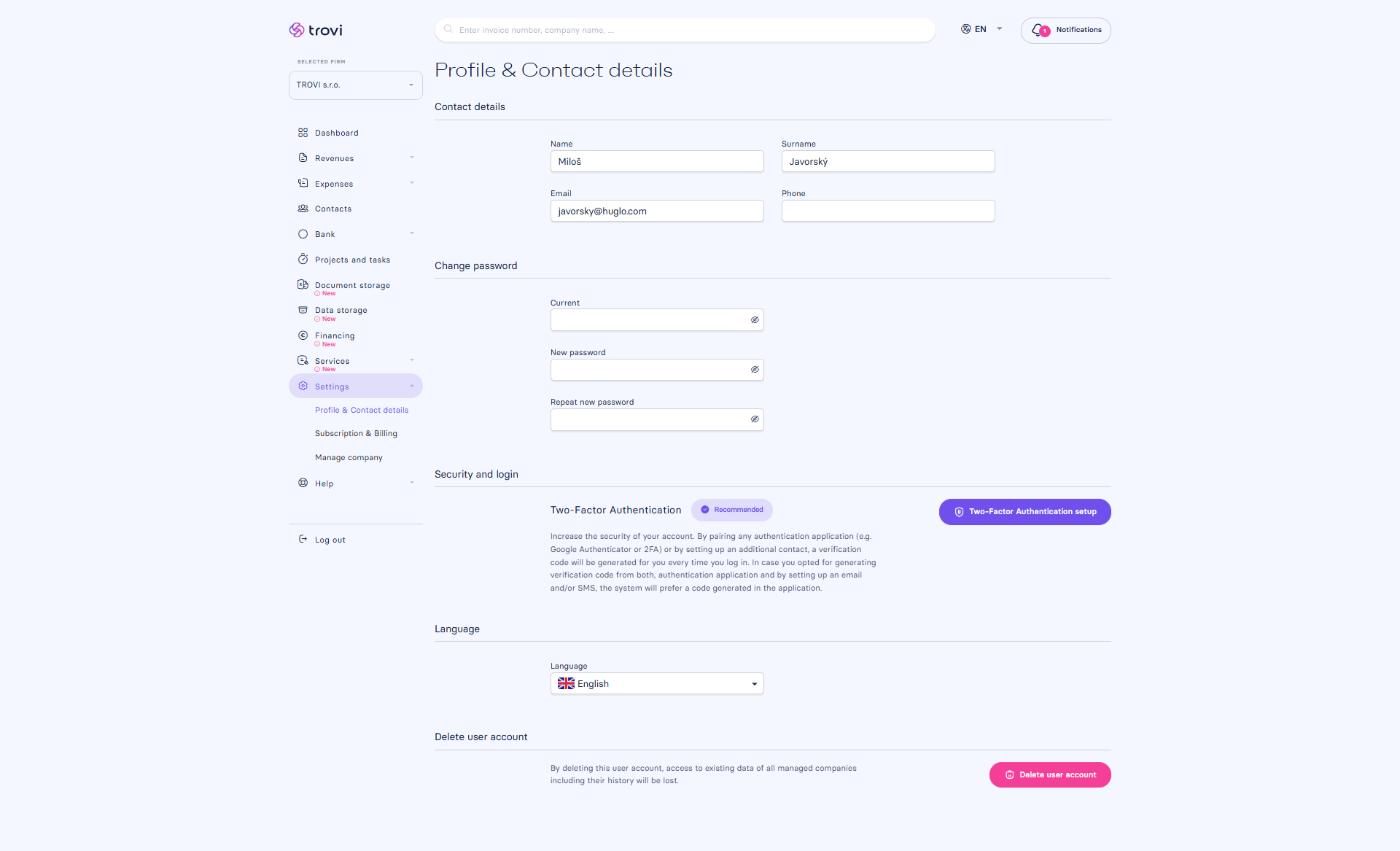
1. Go to settings:
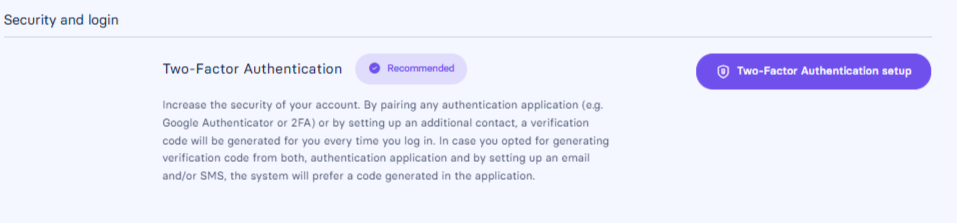
Settings → Profile & Contact details → Security and login
Click the button “Two-Factor Authentication setup”.
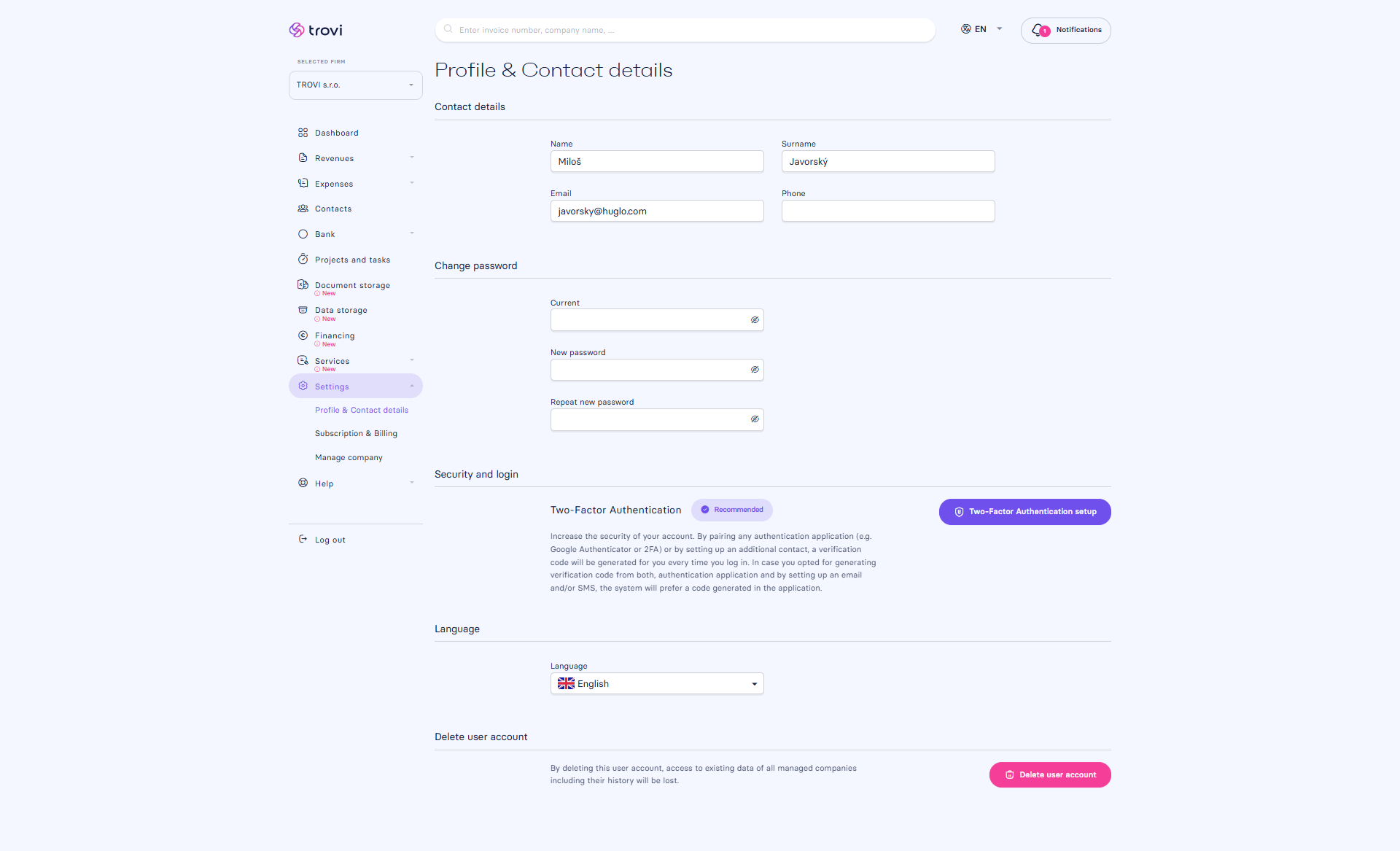
2. Choose your method:
A screen with three options will appear:
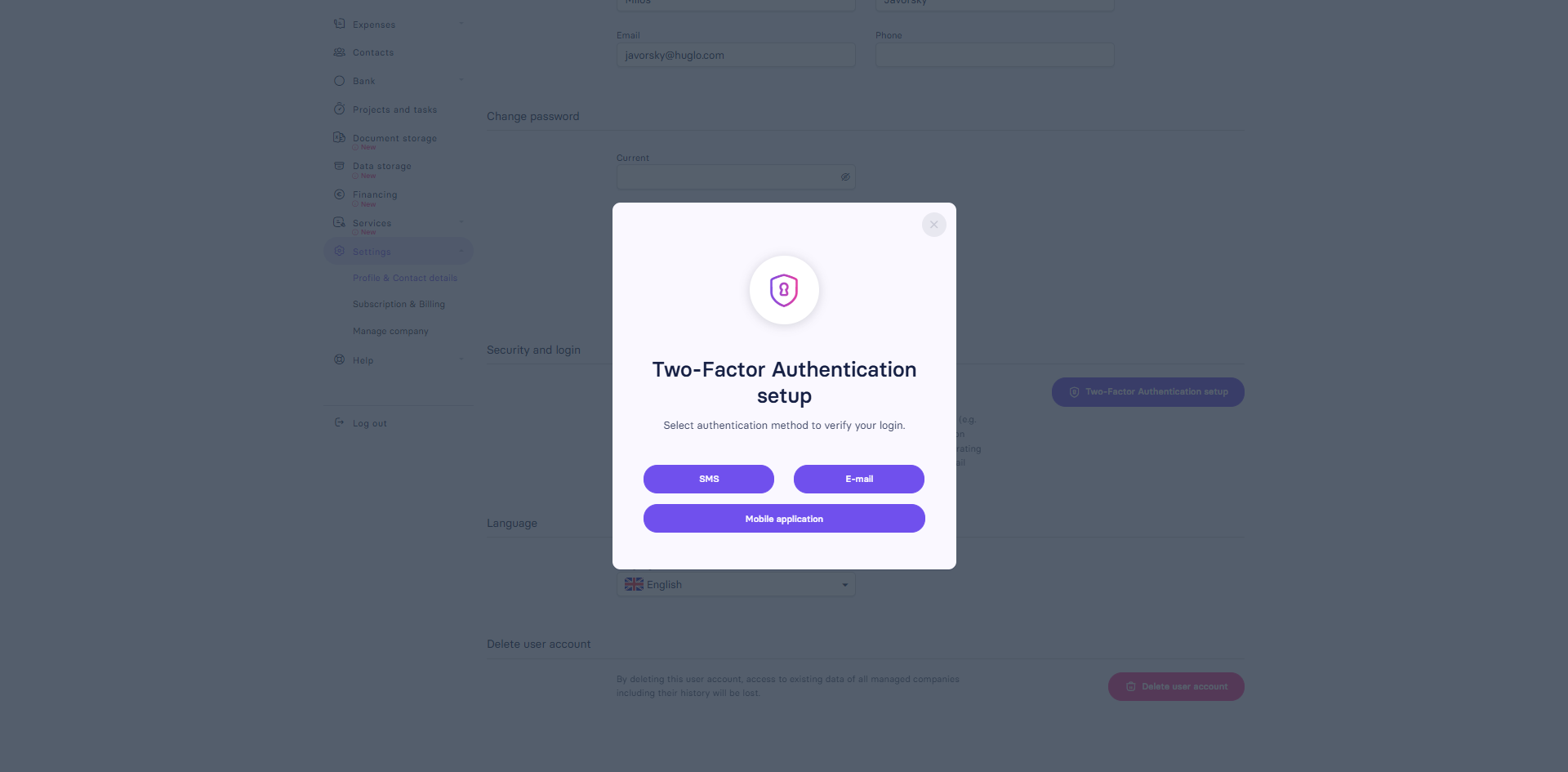
3. Complete the setup depending on your selected method:
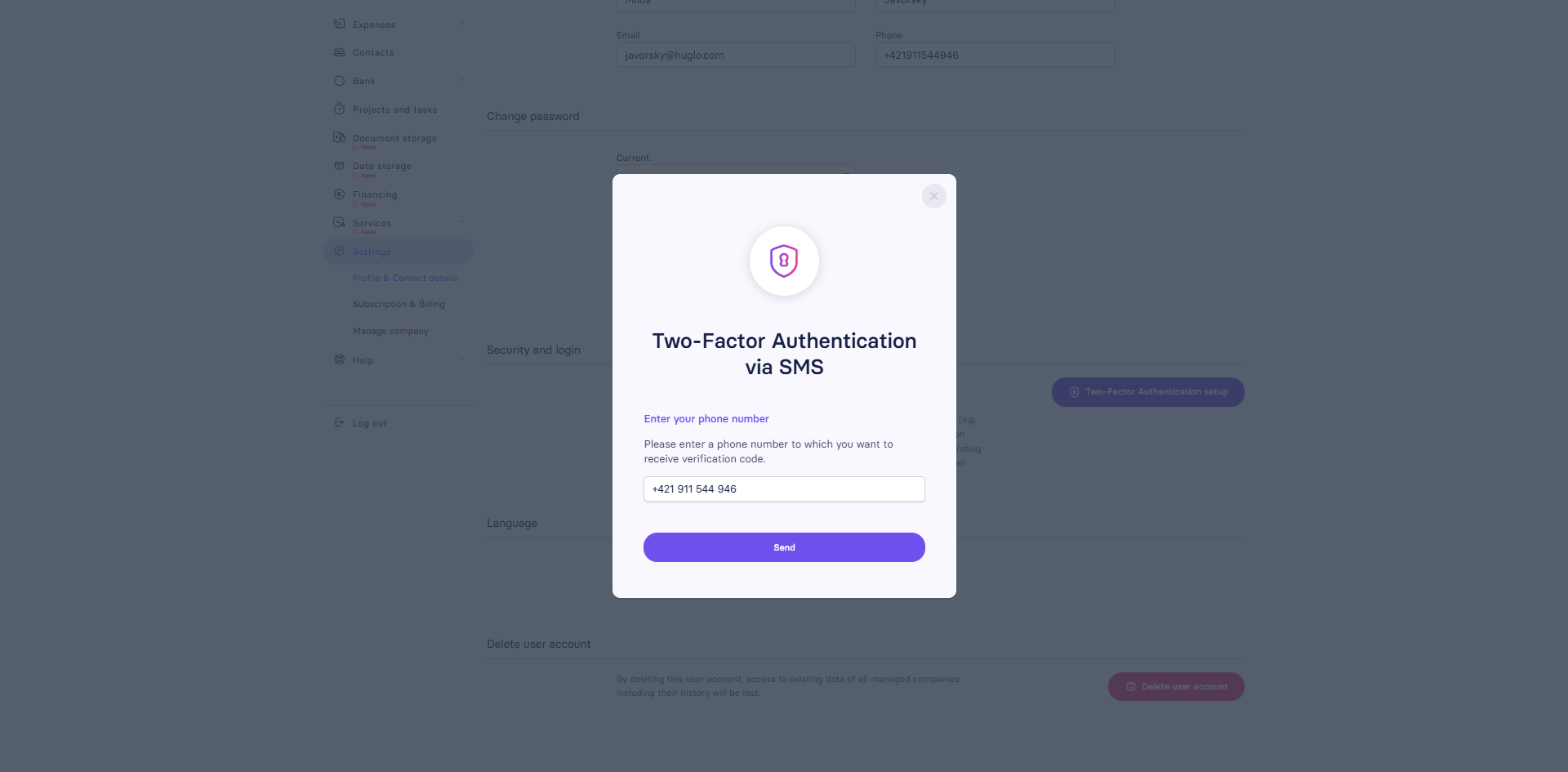
📩 SMS
- Enter your phone number
- Click Send
- At each login, enter the code you receive by SMS
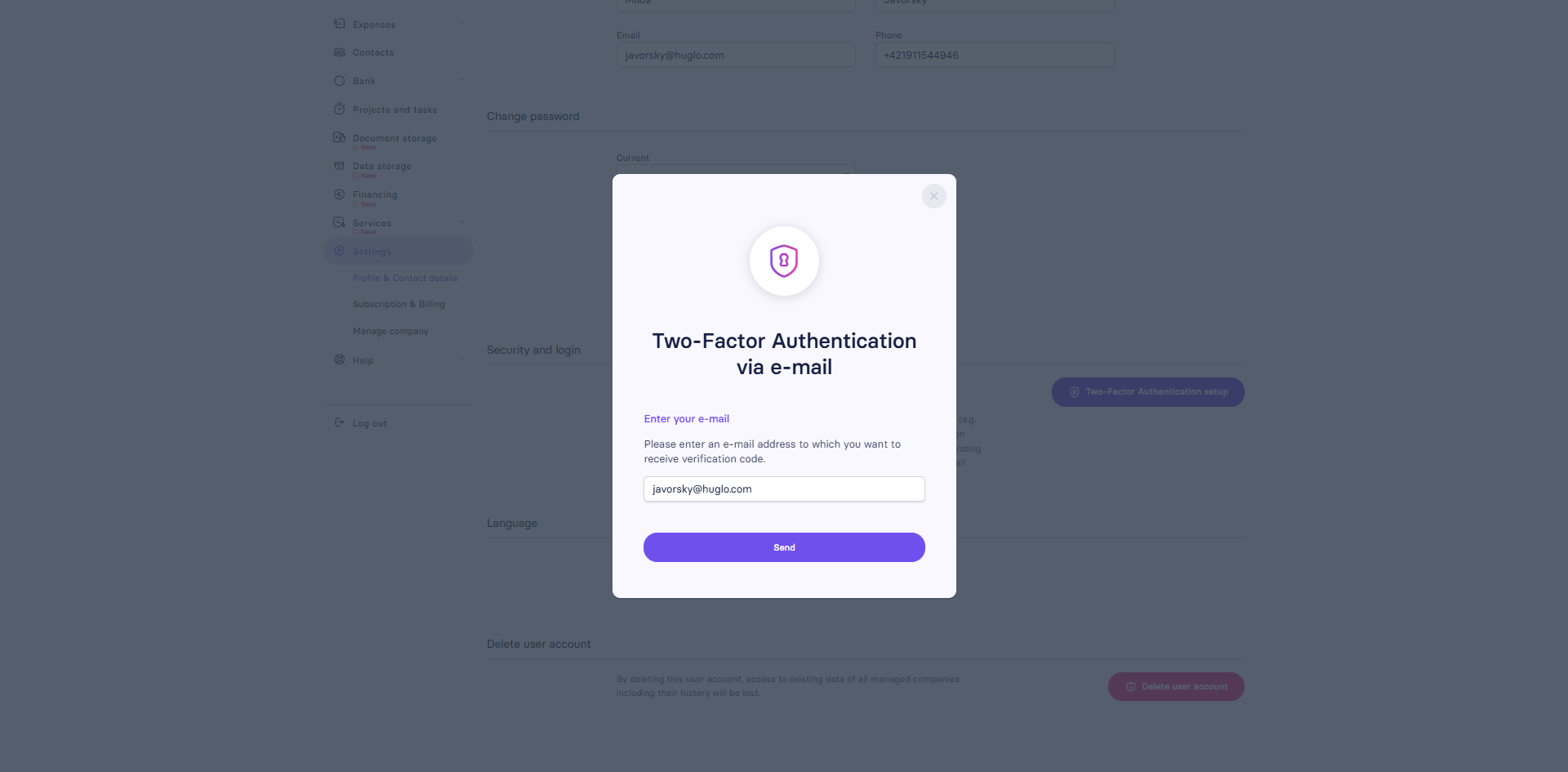
- Enter the email address where we should send the code
- Click Send
- At each login, enter the code from the email
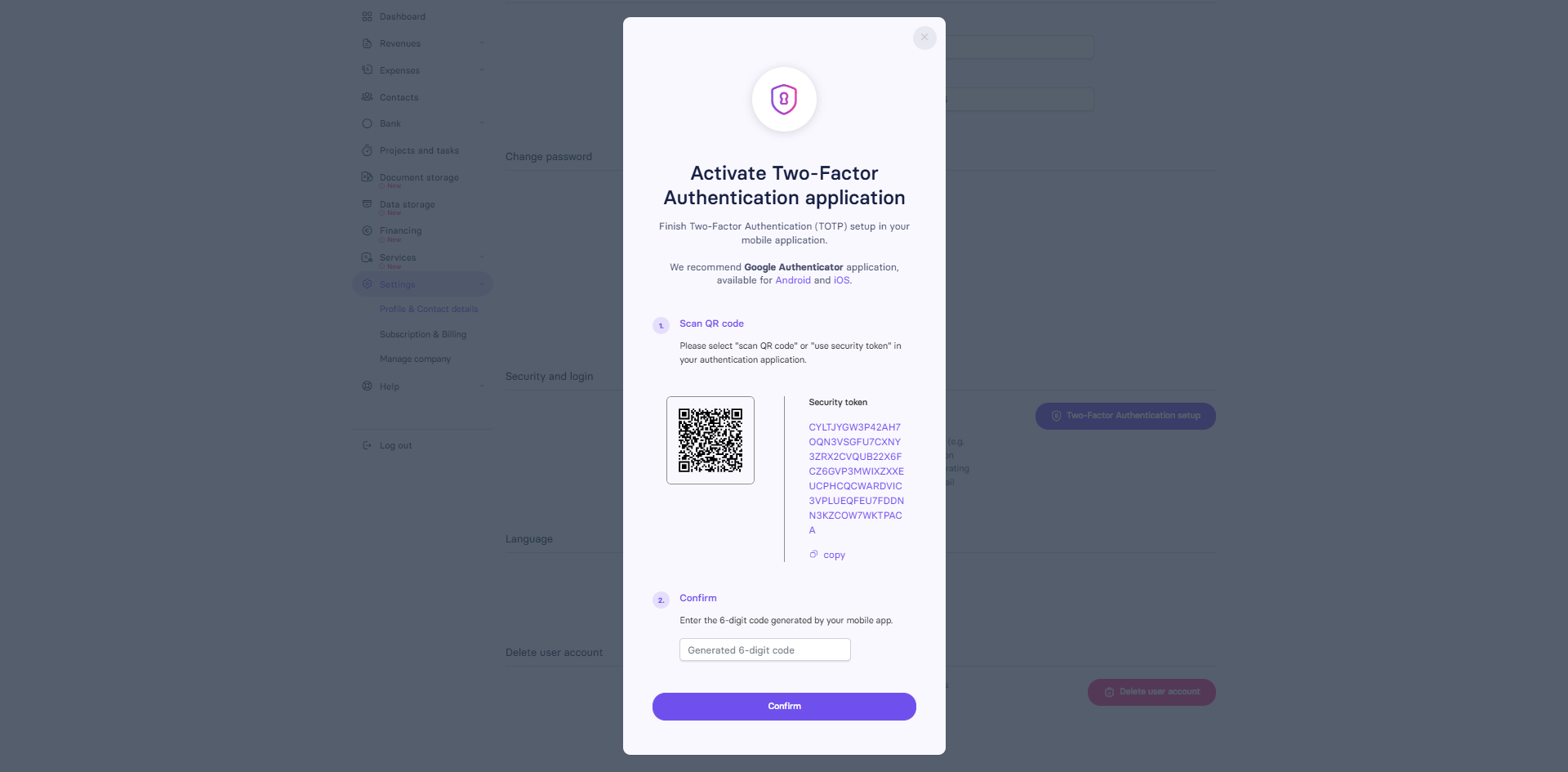
📱 Mobile app (e.g. Google Authenticator)
- Open your authentication app
- Scan the QR code or manually enter the security token
- Enter the 6-digit code generated by the app
- Click Confirm
- At each login, enter the code from the app
🧑💻 Where to find this setting?
You can access the Security and login section here:
Settings → Profile & Contact details
❓ Frequently asked questions
What if I lose access to my authentication app?
In that case, please contact our support. We’ll help you deactivate and reconfigure your authentication.
Can I set up more than one method?
No, only one verification method can be active at a time.
🔁 How to change or disable 2FA
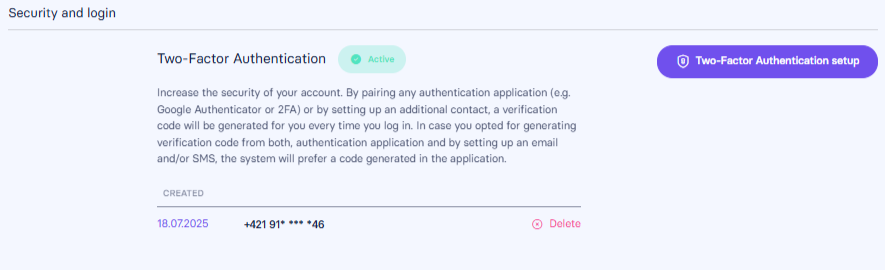
- Go to Profile & Contact details → Security and login
- Click Delete
- Confirm the prompt – the system will deactivate your 2FA
- You can then choose another method via “Two-Factor Authentication setup”
📝 This article was translated with AI. If you notice any inconsistency, feel free to let us know.