
❓ How to create a new project and task in Fakturácia?
Learn how to create a project, add a task, set an hourly rate, and assign a client. This allows you to efficiently track time from the very beginning.
🧱 How to create a new project
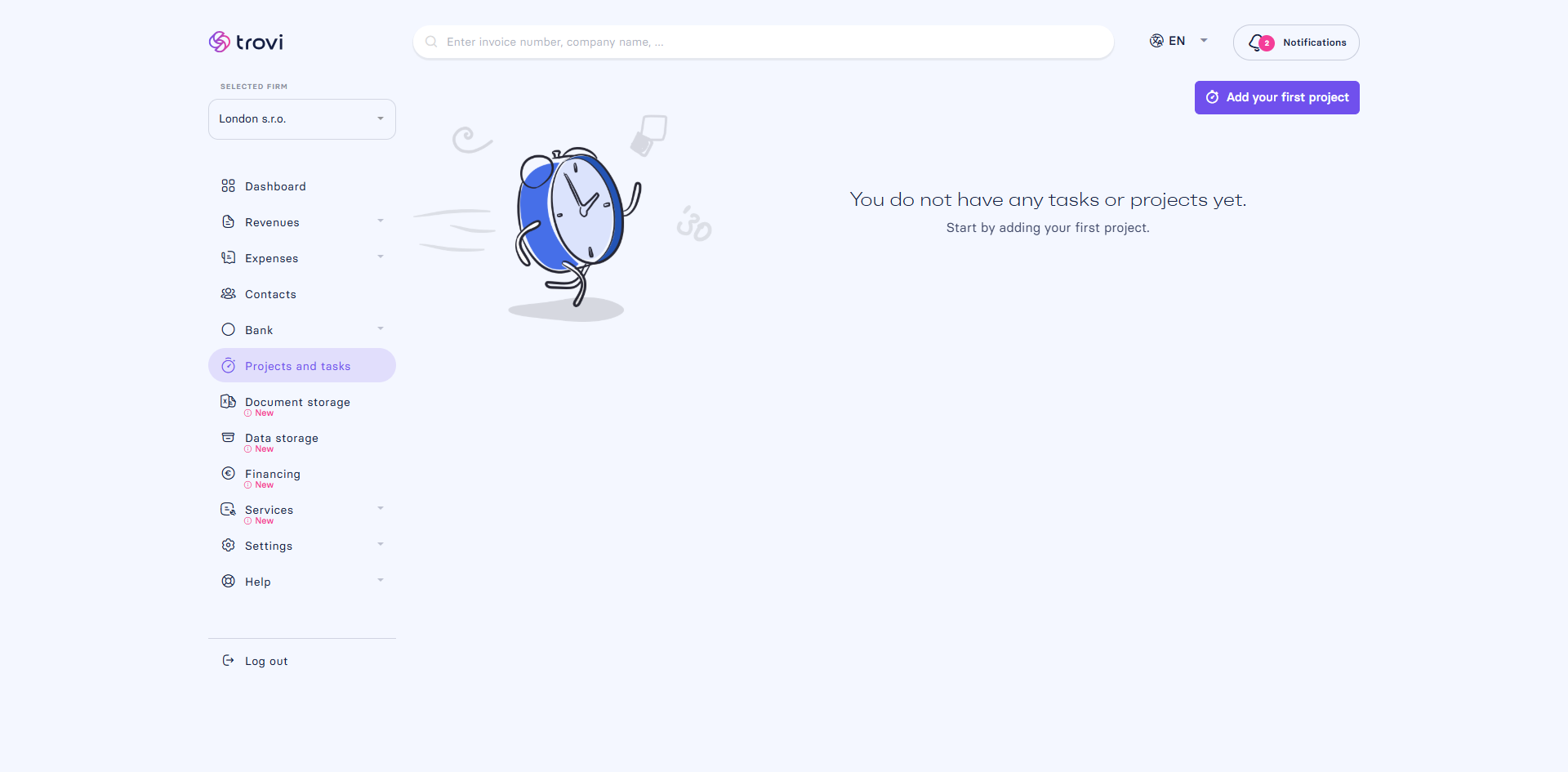
- Go to the Projects and tasks section.
- Click Add your first project (or New project or task if you already have some).
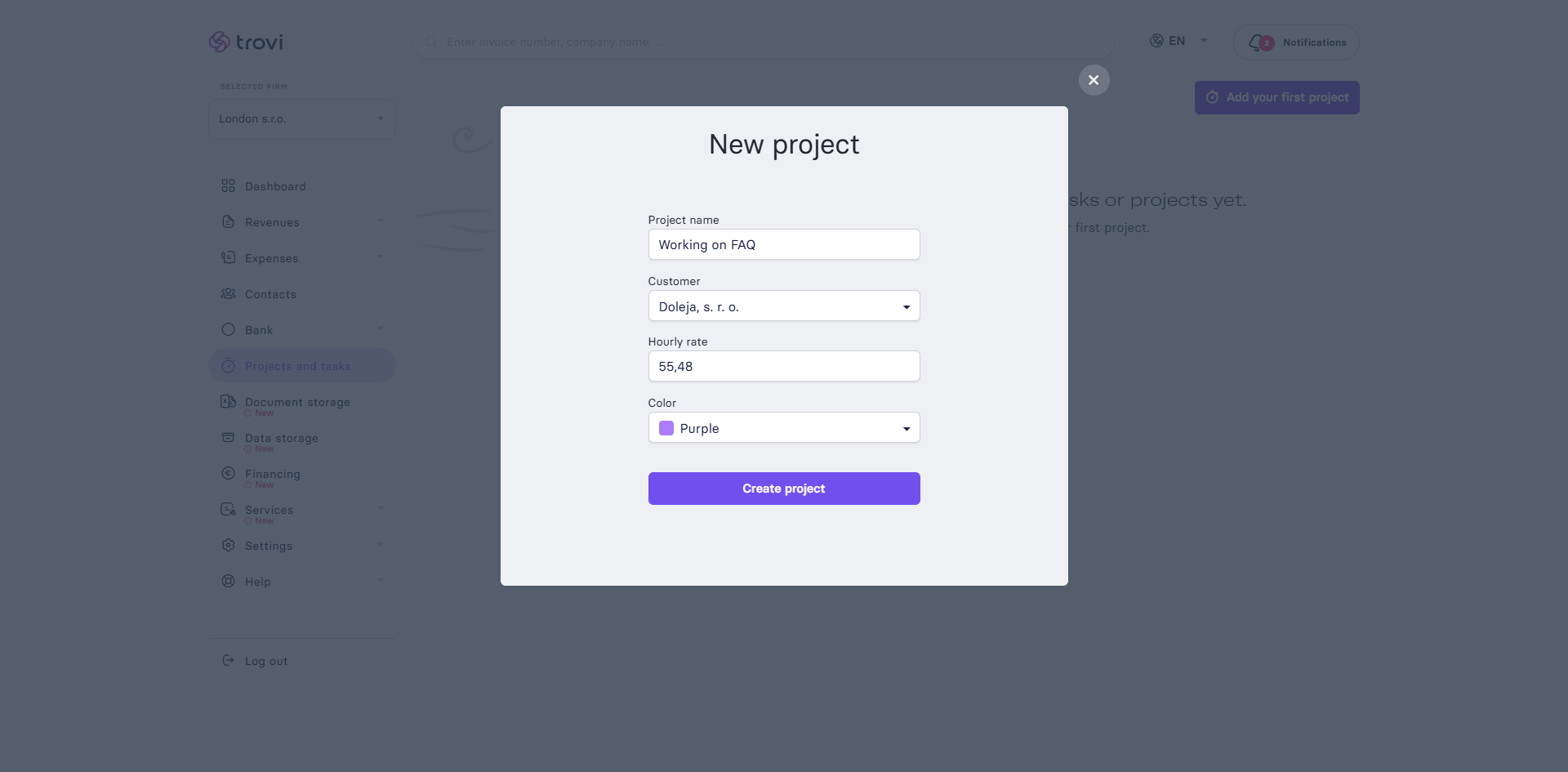
- A New Project dialog will appear.
- Fill in the following fields:
- Project name
- Client (if you haven’t added any yet, click Add new client)
- Hourly rate – used in time reports and billing
- Project color – helps visually distinguish your projects
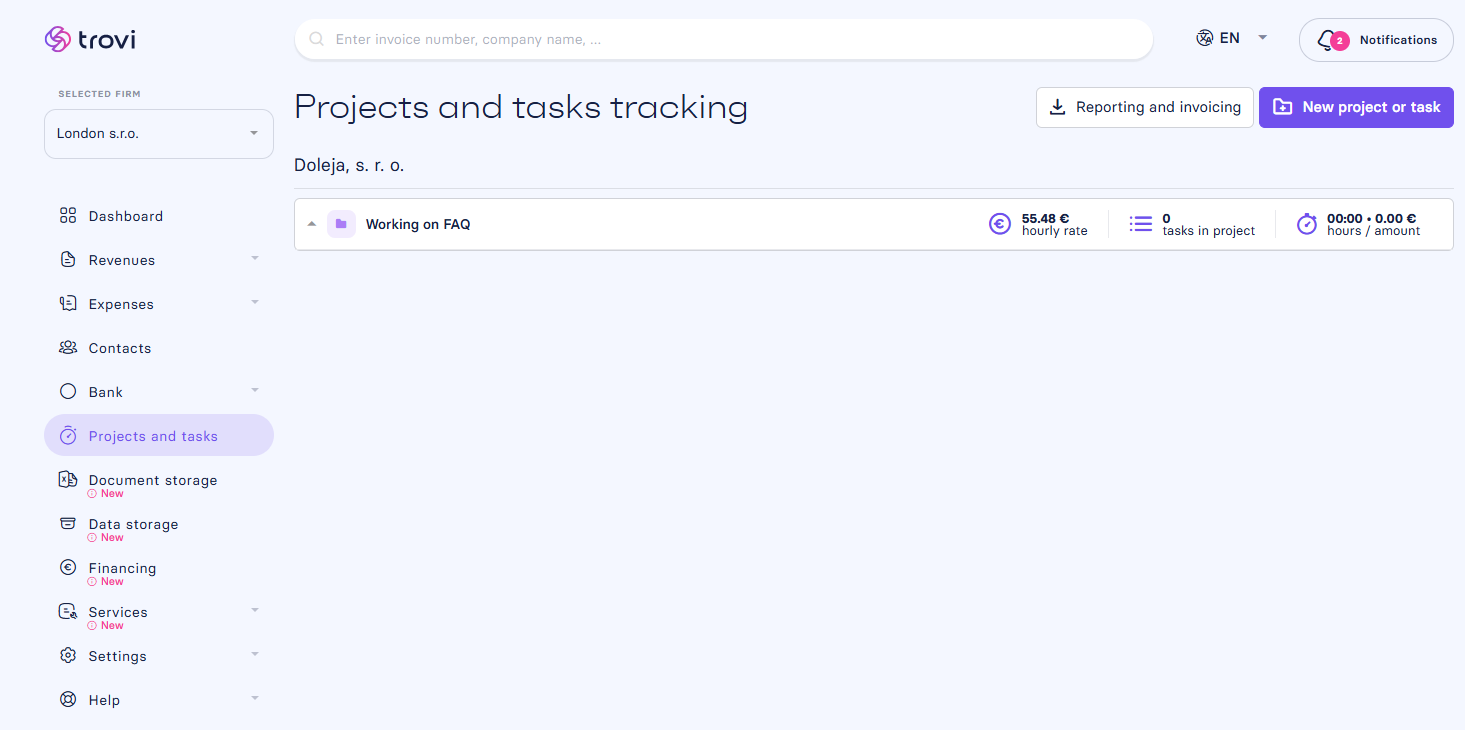
- Confirm by clicking Create project
✍️ How to add a new task
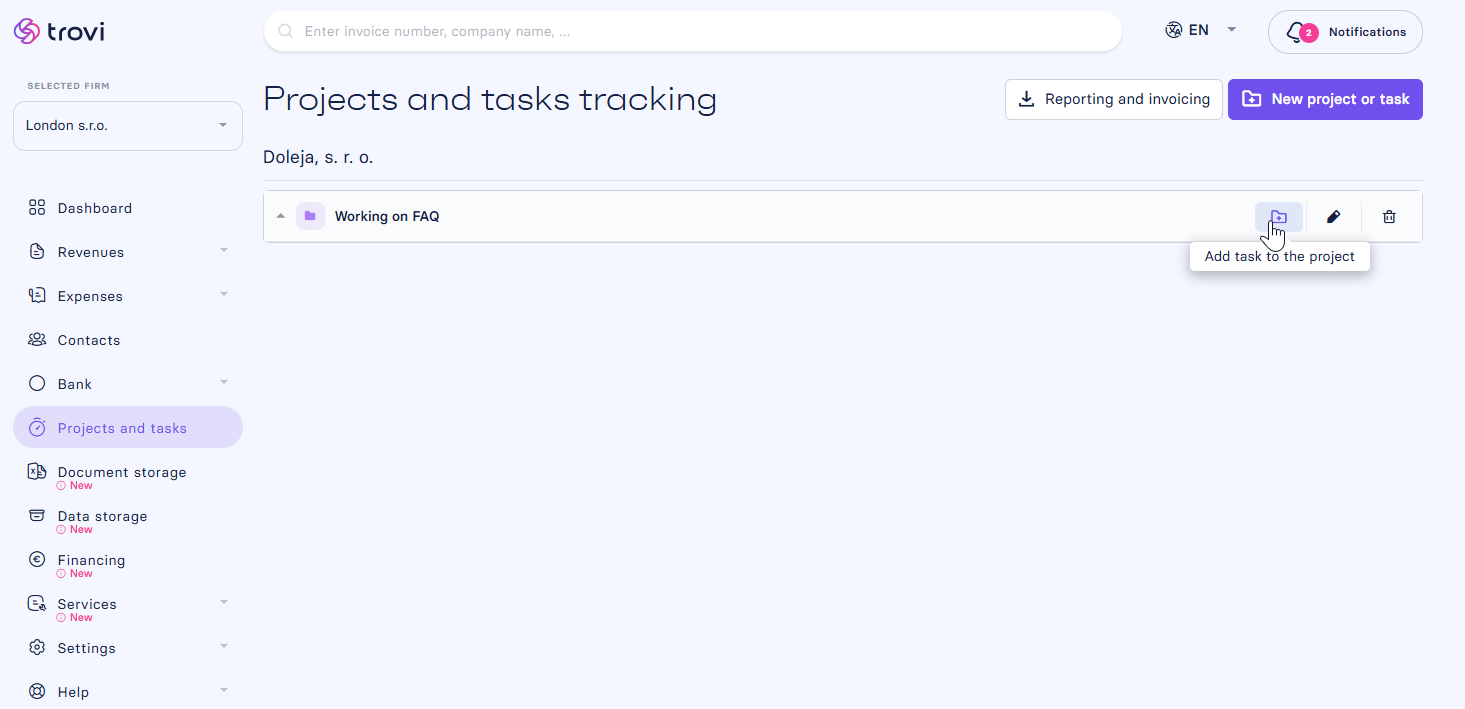
After creating a project, you can add a task:
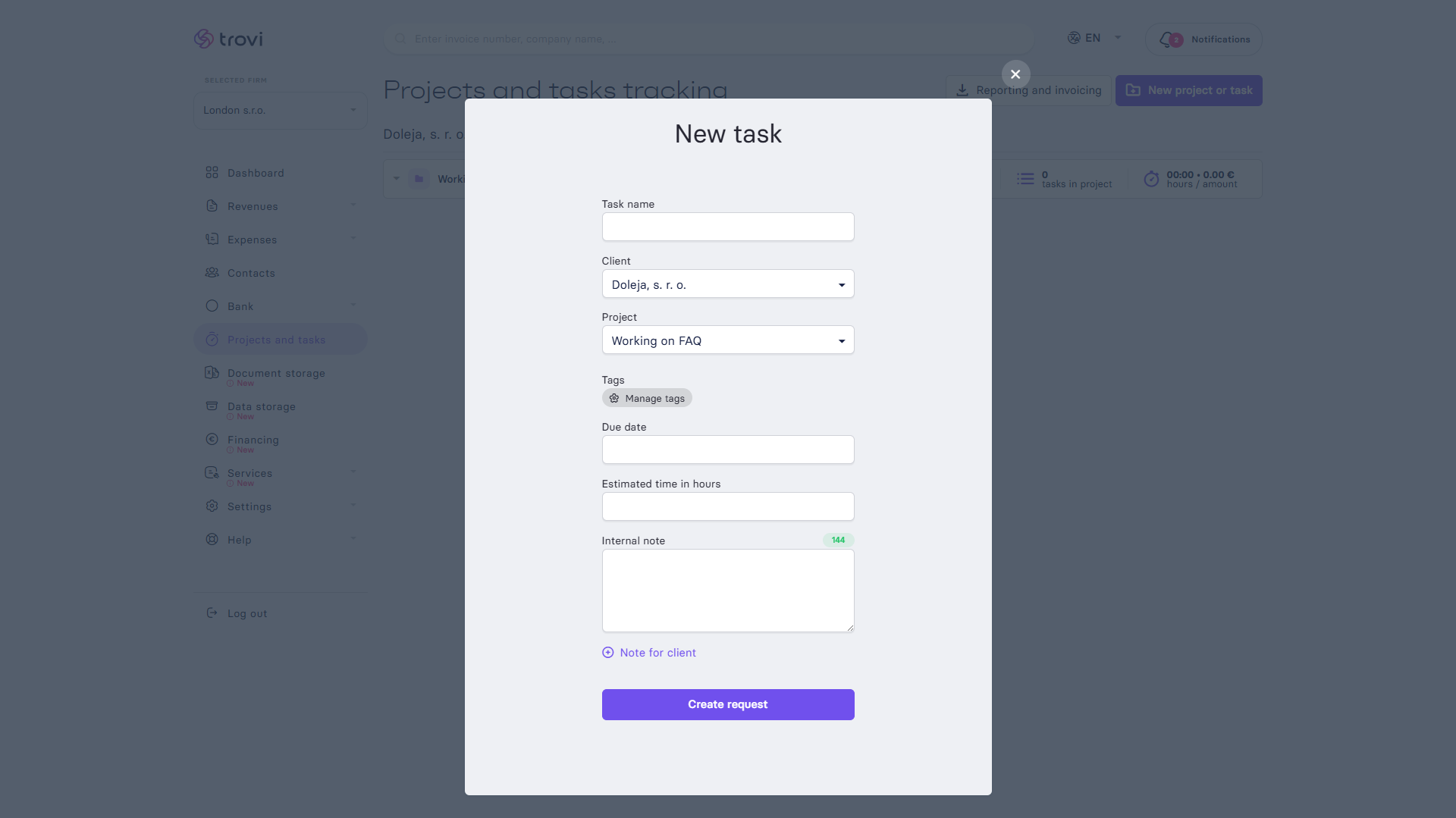
- Click New project or task
- Under New task, fill in:
- Task name
- Assign it to a client and project
- Optionally: tags, deadline, estimated time, internal or client notes
- Click Create request
❗ Things to watch out for
- You cannot create a project without a client – you must first add one in the Contacts section
- Projects can be created without tasks, but to track time, you need at least one task
- The hourly rate can be changed later, but it only applies from that moment onward
📝 This article was translated with AI. If you notice any inconsistency, feel free to let us know.