
🧾 What are Receipts in Fakturácia?
The Receipts feature allows easy tracking of your expense documents directly within the Fakturácia app. No more lost receipts – keep everything in one place, ready for accounting processing.
✅ Benefits:
- Online expense tracking
- Automatic data extraction from receipts (OCR)
- Quick verification and easy categorization
- Tagging receipts for better organization
📤 How to upload a receipt into Fakturácia?
The process is very simple:
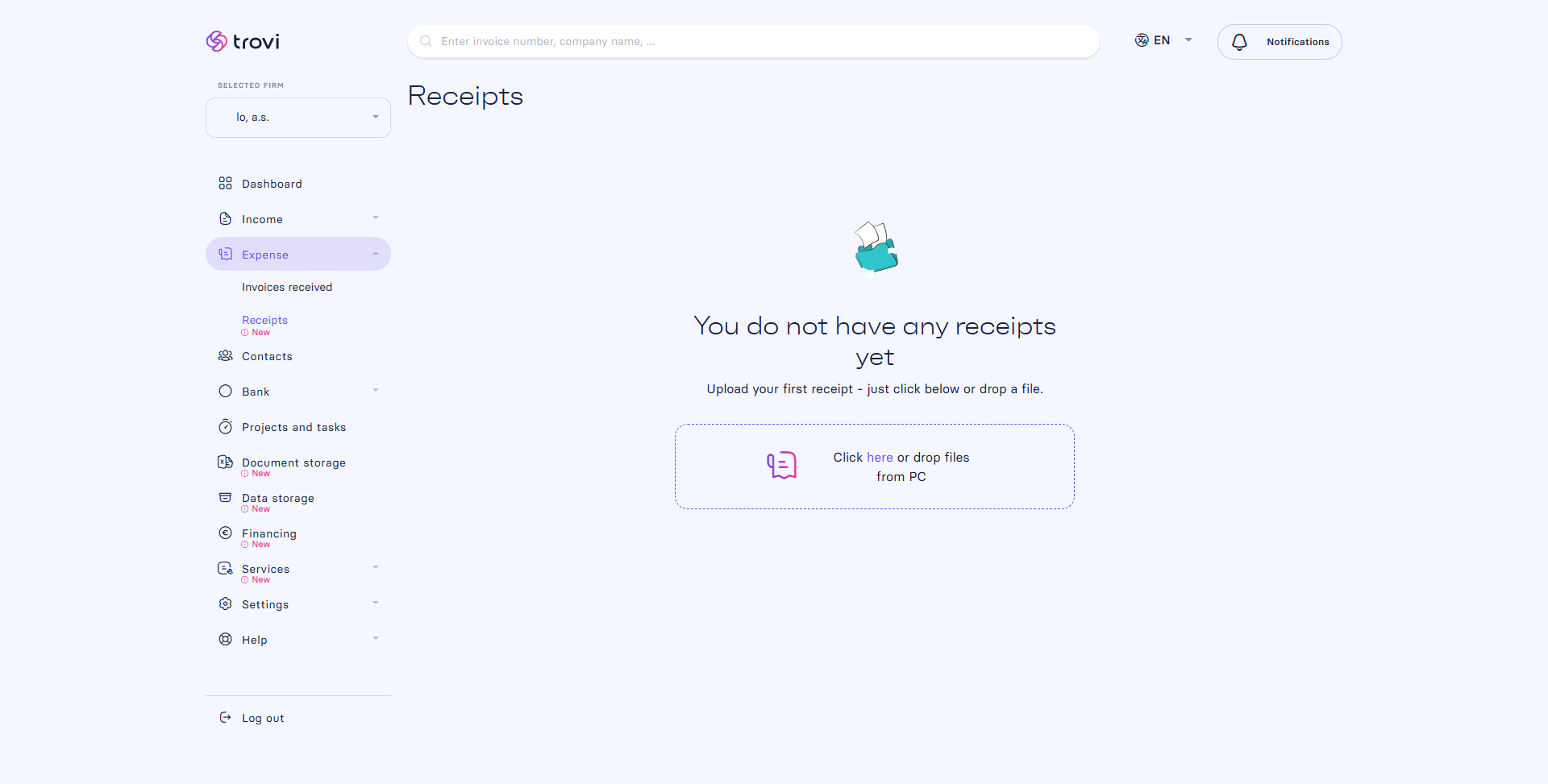
- Take a photo of the receipt (you can use your phone – the Fakturácia app is responsive – and start taking photos directly from the section Expense → Receipts → Click to Upload file)
- Go to Expense → Receipts
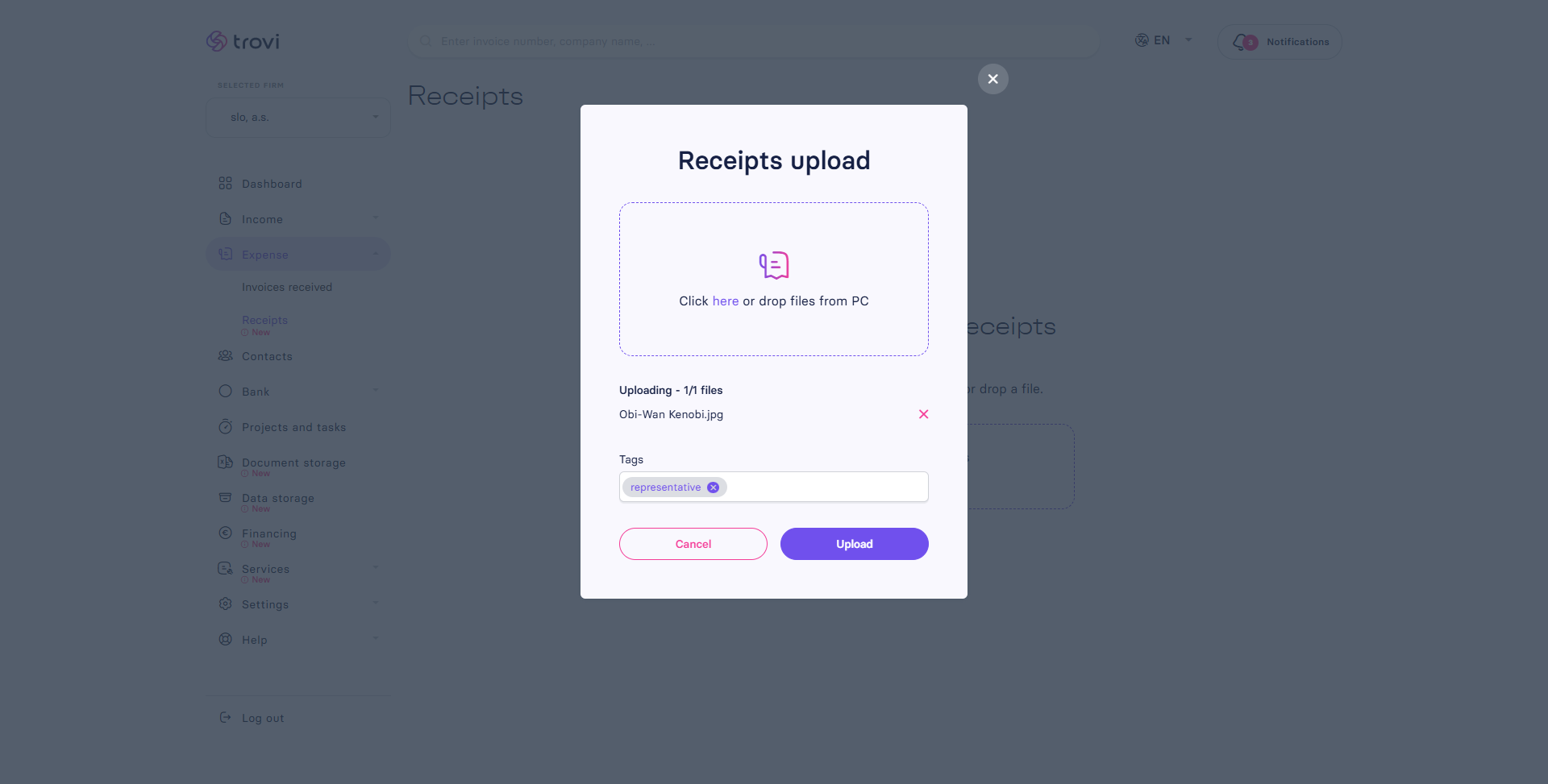
- Click on “Click here or drop files from PC”
- You can upload multiple receipts at once
- Alternatively, send receipts via email to your Fakturácia Data storage and move them into the Receipts section from there
- Add any tags for easier search
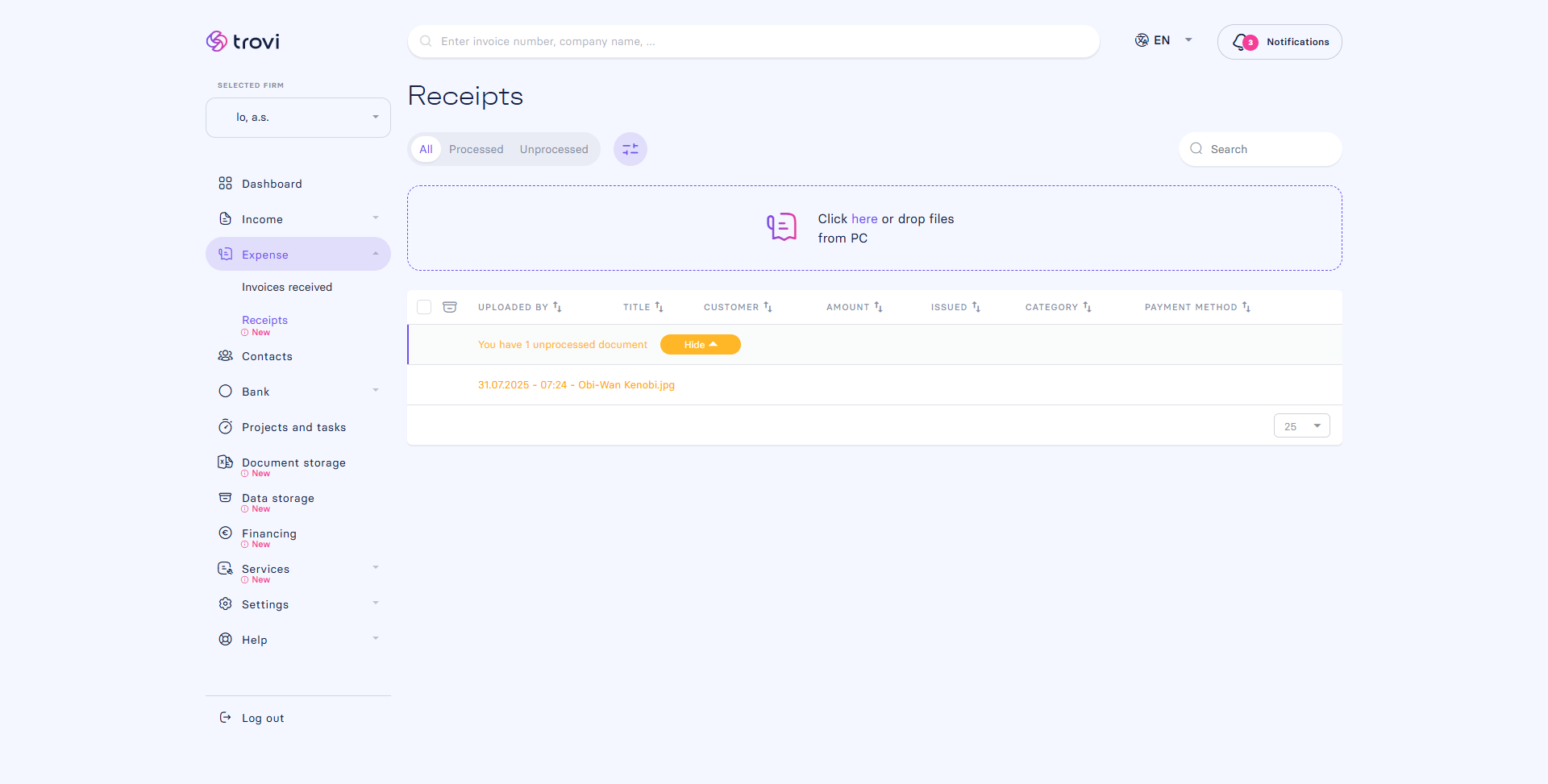
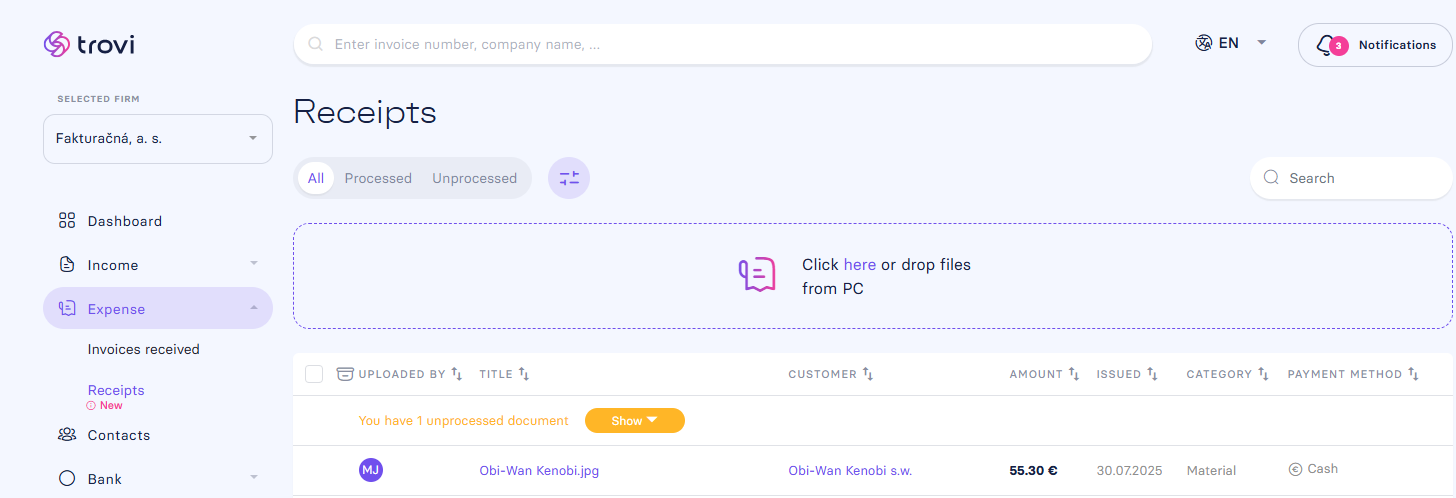
Receipts initially upload as drafts (orange color).
🛠️ Receipt Processing
After uploading, the system automatically tries to extract necessary data.
Click on the uploaded draft receipt:
- The system will notify you if data was machine-extracted (and if some information could not be fully extracted)
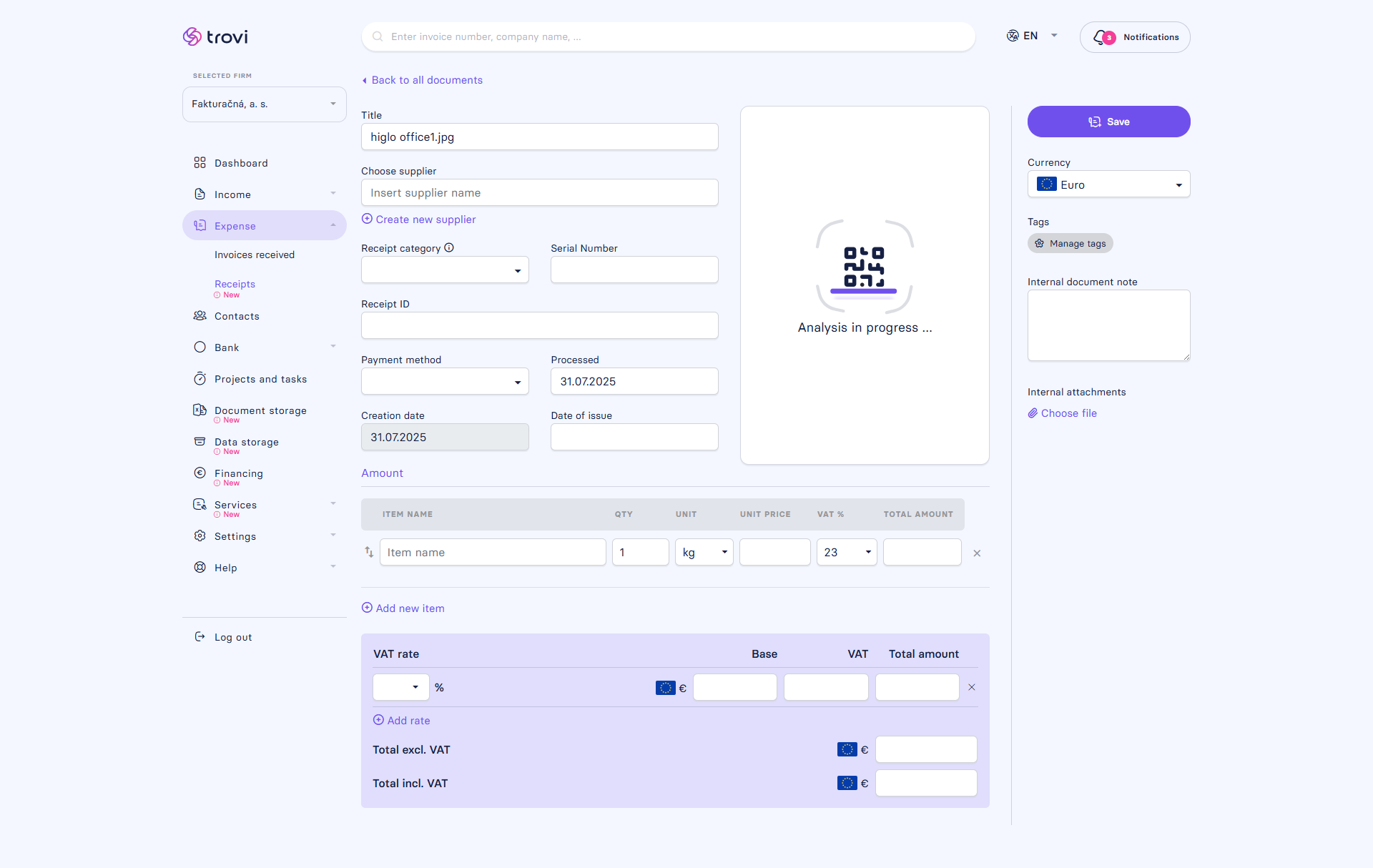
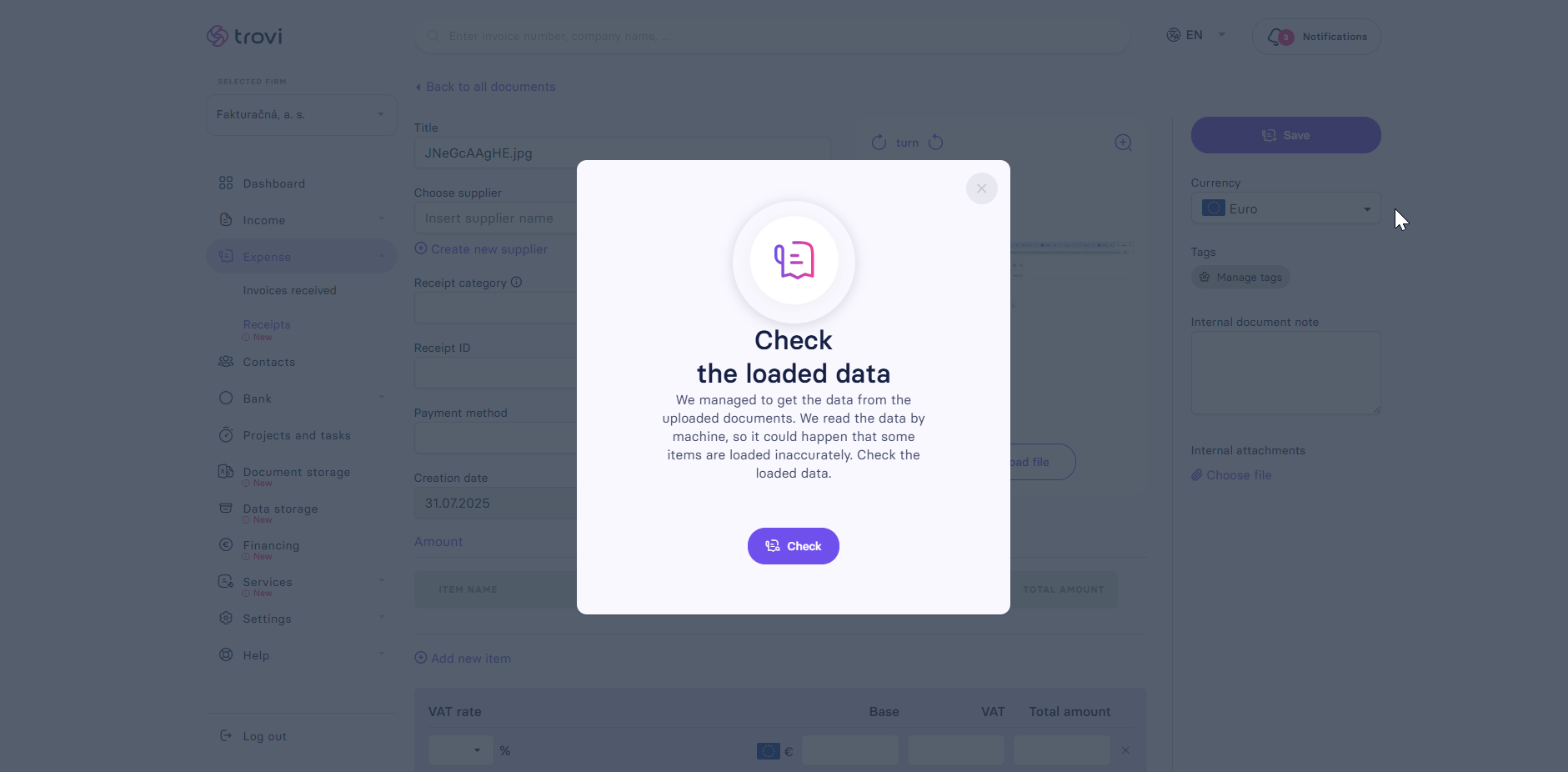
- Always verify the accuracy of the extracted information
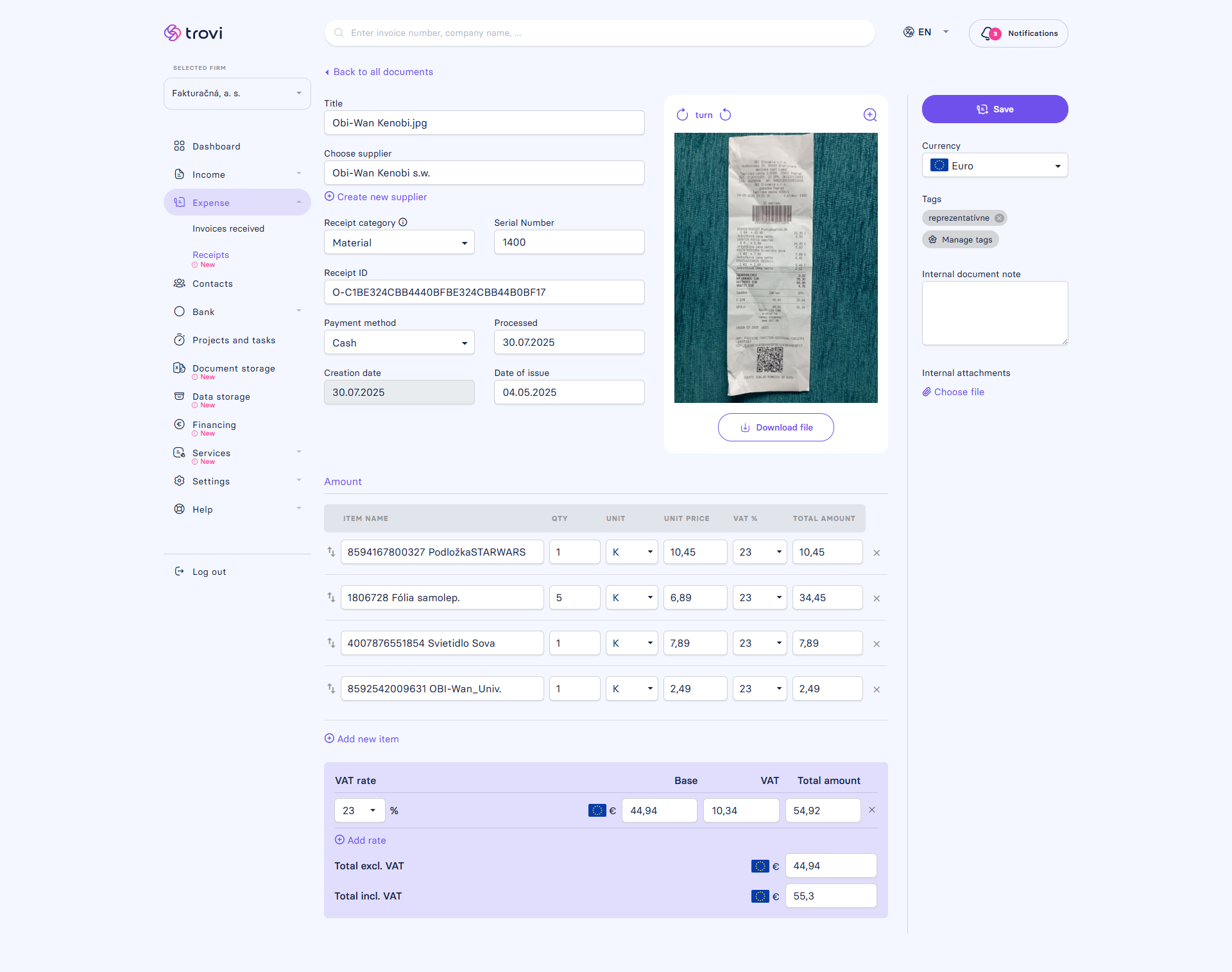
- Fill in the Receipt category and Payment method
The system can automatically extract information such as:
- Supplier name
- Dates
- Amounts and items on the receipt
In case of a poor-quality photo or unreadable QR code, you will need to manually fill in missing data!
🚨 Required details to save the receipt
You can save the receipt only if the following fields are completed:
- Choose supplier – the system selects the supplier automatically, or you select it manually (or create a new supplier)
- Receipt category – mandatory
- Payment method– mandatory
By clicking “Save”, the receipt moves to processed status (blue color).
📂 Supported formats and file sizes
- Formats: HEIC, JFIF, JPEG, JPG, PDF, PNG
- Maximum file size: 10 MB
❓ Frequently asked questions
Can I upload multiple receipts at once? Yes, Fakturácia supports bulk file uploads.
What if the system doesn’t extract all data? You can easily complete or correct data manually.
What's the maximum file size allowed? The maximum size for a single file is 10 MB.
What if multiple users in Fakturácia upload receipts?
If multiple users upload receipts, Fakturácia automatically records who uploaded each receipt. You'll see the initials of the user next to each uploaded receipt, helping to keep things clear and transparent within your team.
📝 This article was translated with AI. If you notice any inconsistency, feel free to let us know.